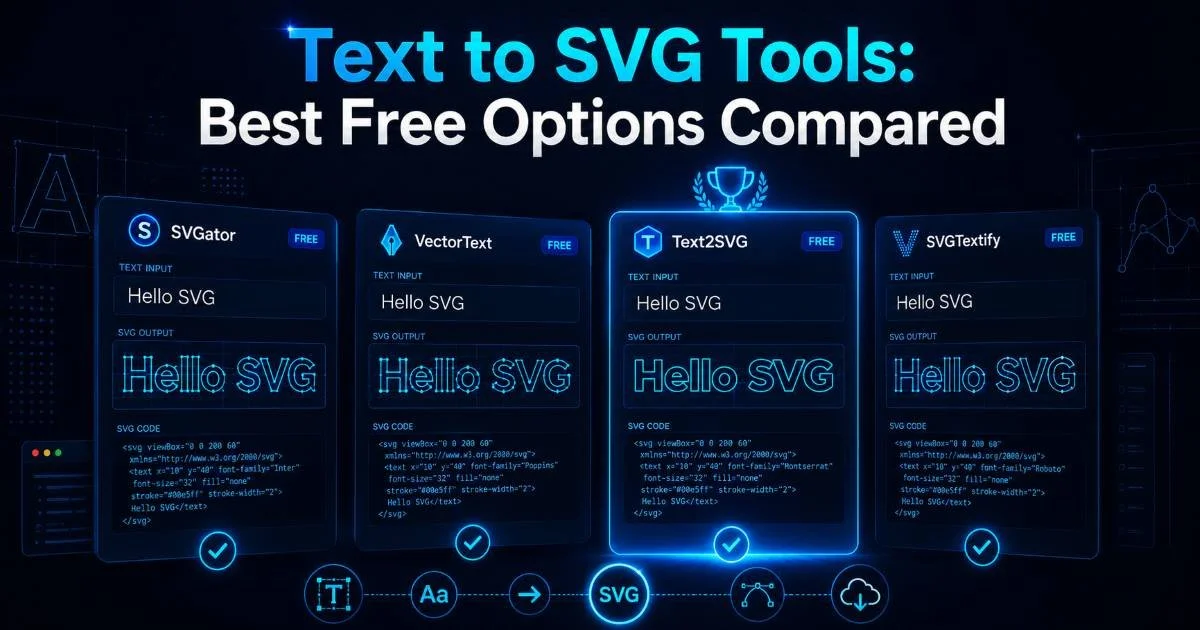
Text to SVG tools have become essential utilities for web designers and developers who need lightweight, resolution-independent graphics without firing up a full design application. Whether you're generating badges, labels, icons, or simple diagrams, these tools convert plain text input into clean scalable vector graphics that render crisply on any screen size. But the landscape is crowded.
Free options range from browser-based generators to command-line utilities, and picking the right one can save you hours of manual coding. This guide walks you through the best free options available right now, compares their strengths and weaknesses, and shows you exactly how to evaluate them for your workflow.
If you're new to the concept, our overview of text to SVG conversion covers the fundamentals worth understanding first. The stakes are real: choosing a poor tool means bloated SVG output, accessibility gaps, and wasted development time.
Key Takeaways
- Browser-based text to SVG tools offer the fastest workflow for one-off graphic generation.
- CLI tools like google/fonts-to-svg outperform web apps for batch conversion tasks.
- Always validate SVG output size; some generators produce unnecessarily bloated markup.
- Accessibility attributes like aria-label are rarely added automatically by free tools.
- TxtToSvg.dev combines AI-powered generation with clean, optimized SVG output for developers.
1. Understanding What Matters in a Text to SVG Tool
Not all SVG generators are created equal, and understanding the evaluation criteria before comparing tools saves you from costly mistakes later. The primary factors are output cleanliness (how minimal and well-structured the SVG code is), customization options (font selection, sizing, color, spacing), and integration friendliness (whether the output works smoothly in your existing build pipeline). A tool that produces a 15KB SVG for a simple label when it should be 2KB is a tool you should avoid.
File size directly impacts page load performance. Vector graphics are supposed to be lightweight, but many free tools wrap output in unnecessary metadata, redundant grouping elements, and inline styles that balloon the markup. Look for tools that produce path-based output rather than embedded font references, since path data renders consistently across all browsers without requiring font loading. The difference between a clean SVG and a bloated one can be the difference between a 90 and a 70 on your Lighthouse performance score.
Output Quality Indicators
When you open the generated SVG in a code editor, check for a few specific things. The viewBox attribute should be present and properly sized. There should be no embedded raster images or base64 data. The number of path elements should be reasonable for the text complexity. Good tools also set the xmlns attribute correctly, which prevents rendering bugs when the SVG is used inline in HTML documents rather than loaded as an external file.
Open generated SVGs in VS Code and install the SVG Preview extension to instantly spot bloated or malformed output.
Accessibility matters too. A well-formed SVG should include a title element and support adding role="img" and aria-label attributes. Most free tools skip this entirely, leaving you to add them manually. That extra step is worth documenting in your workflow checklist, because screen readers will ignore unlabeled SVGs. If your project requires WCAG compliance, budget a few extra minutes per graphic for accessibility markup.
2. Top Free Text to SVG Tools Compared
Here is a direct comparison of the most popular free text to SVG tools available to web designers and developers right now. Each has been tested with identical input: the phrase "Hello World" in a standard sans-serif font at 48px equivalent sizing. The table below captures the practical differences that matter most for production use.
| Tool | Type | Output Size (avg) | Font Options | Batch Mode | Accessibility Attrs |
|---|---|---|---|---|---|
| TxtToSvg.dev | Web (AI) | 1.8 KB | AI-driven | No | Partial |
| SVGFont Viewer | Web | 3.2 KB | Google Fonts | No | No |
| text-to-svg (npm) | CLI | 1.4 KB | Local TTF/OTF | Yes | No |
| Inkscape CLI | Desktop/CLI | 4.1 KB | System fonts | Yes | No |
| google/fonts-to-svg | CLI | 1.6 KB | Google Fonts | Yes | No |
Detailed Tool Breakdown
The npm package "text-to-svg" by Hideki Shiro remains one of the most efficient options for developers comfortable with Node.js. It accepts local font files, converts text to SVG path data, and outputs minimal markup. The trade-off is zero visual interface; you need to handle font acquisition and sizing through code. For automated pipelines where you're generating dozens of SVG labels or SVG icons programmatically, this is the strongest choice in terms of raw efficiency and file size control.
TxtToSvg.dev takes a different approach by using AI to interpret your text input and generate contextually appropriate vector graphics. Rather than simply converting a font glyph to a path, it can produce badges, labels, and simple visual layouts from a text description. This makes it particularly useful for designers who want more than just outlined text. The output stays clean, averaging under 2KB for simple conversions, and the browser-based interface requires no installation or setup.
"The best SVG generator is the one that fits your workflow without adding steps."
Inkscape deserves mention because many developers already have it installed. Its command-line mode can convert text to SVG via scripting, but the output tends to be heavier due to Inkscape's internal metadata and editor-specific attributes. Running SVGO as a post-processing step is practically mandatory. Google's fonts-to-svg utility sits between the CLI minimalism of text-to-svg and the convenience of a web tool, pulling directly from Google Fonts and producing compact output.
Inkscape CLI output often includes sodipodi and inkscape namespace attributes that add 500+ bytes of unnecessary data.
3. How to Evaluate and Test Each Tool
Start by defining your actual use case before testing any tool. Are you generating a single logo badge, or do you need to produce 200 SVG labels from a spreadsheet column? The answer determines whether a web-based SVG generator or a CLI utility is the right fit. Write down three specific outputs you need, then test each candidate tool against those exact requirements. Abstract comparisons waste time; concrete tests reveal real limitations fast.
Run each tool's output through SVGO (SVG Optimizer) and compare before-and-after file sizes. If a tool produces output that SVGO can shrink by more than 40%, that tool is generating excessive markup. Also test the SVGs in at least three rendering contexts: inline HTML, as an img src, and as a CSS background-image. Some tools generate SVGs that work fine inline but break when loaded externally due to missing xmlns declarations or incorrect viewBox values.
Performance and Security Considerations
When using web-based text to SVG tools, consider what happens to your input data. Some online converters send your text to a server for processing, which matters if you're working with client-confidential content like unreleased brand names or product labels. Tools that process entirely client-side (in the browser) eliminate that concern. Check the network tab in your browser's developer tools while using any online SVG generator to see if data is being transmitted.
If you're building an API or service that generates SVGs on the fly, protecting that endpoint from abuse is a separate but related concern. Bot traffic can hammer a conversion endpoint and drive up server costs quickly. A good overview of API protection against bots and abuse covers rate limiting and authentication strategies worth implementing. Even for internal tools, basic rate limiting prevents accidental denial-of-service from runaway scripts.
Never paste sensitive or proprietary text into online SVG generators without verifying they process data client-side only.
Browser compatibility testing is another step many developers skip. While SVG support is universal in modern browsers, specific features like textLength, dominant-baseline, and certain filter effects behave inconsistently. Test your generated SVGs in Chrome, Firefox, and Safari at minimum. Edge cases with text alignment and kerning show up most often in Safari, which handles certain SVG text attributes differently than Chromium-based browsers.
4. Integrating SVG Output Into Your Projects
Once you've selected a tool and generated your SVGs, the integration step determines whether your workflow stays efficient or becomes a maintenance headache. For most web projects, inline SVG is the best approach because it allows CSS styling, JavaScript interaction, and eliminates an extra HTTP request. Copy the generated SVG markup directly into your HTML component. If you're using a framework like React or Vue, consider converting the SVGs into components using tools like SVGR for React or vue-svg-loader.
For projects with many SVG icons or labels, build a simple SVG sprite sheet. Combine individual SVGs into a single file using symbol elements, then reference them with the use element throughout your pages. This approach combines the performance benefits of a single file download with the flexibility of individual graphic references. Many teams automate sprite generation as part of their build process using Webpack or Vite plugins.
SEO and Accessibility Checks
SVGs generated from text should be treated like any other image content from an SEO perspective. Add descriptive title and desc elements inside the SVG markup. When used inline, add role="img" and an aria-label that describes the graphic's purpose. Search engines can parse SVG text content, so the text within your generated graphics may contribute to page relevance signals. Running your pages through a technical SEO scanning tool after adding SVG content helps catch any markup errors or missing attributes.
Version control your SVG files alongside your code. Because SVGs are plain text XML, they diff cleanly in Git, making it easy to track changes over time. Store generated SVGs in a dedicated assets directory and document which tool and settings produced each file. This practice becomes invaluable when a team member needs to regenerate or modify a graphic months later. A brief README in your SVG assets folder noting the tool name, font used, and any post-processing steps applied saves future debugging time.
Add a pre-commit hook that runs SVGO automatically on any SVG files staged for commit to keep output consistently optimized.
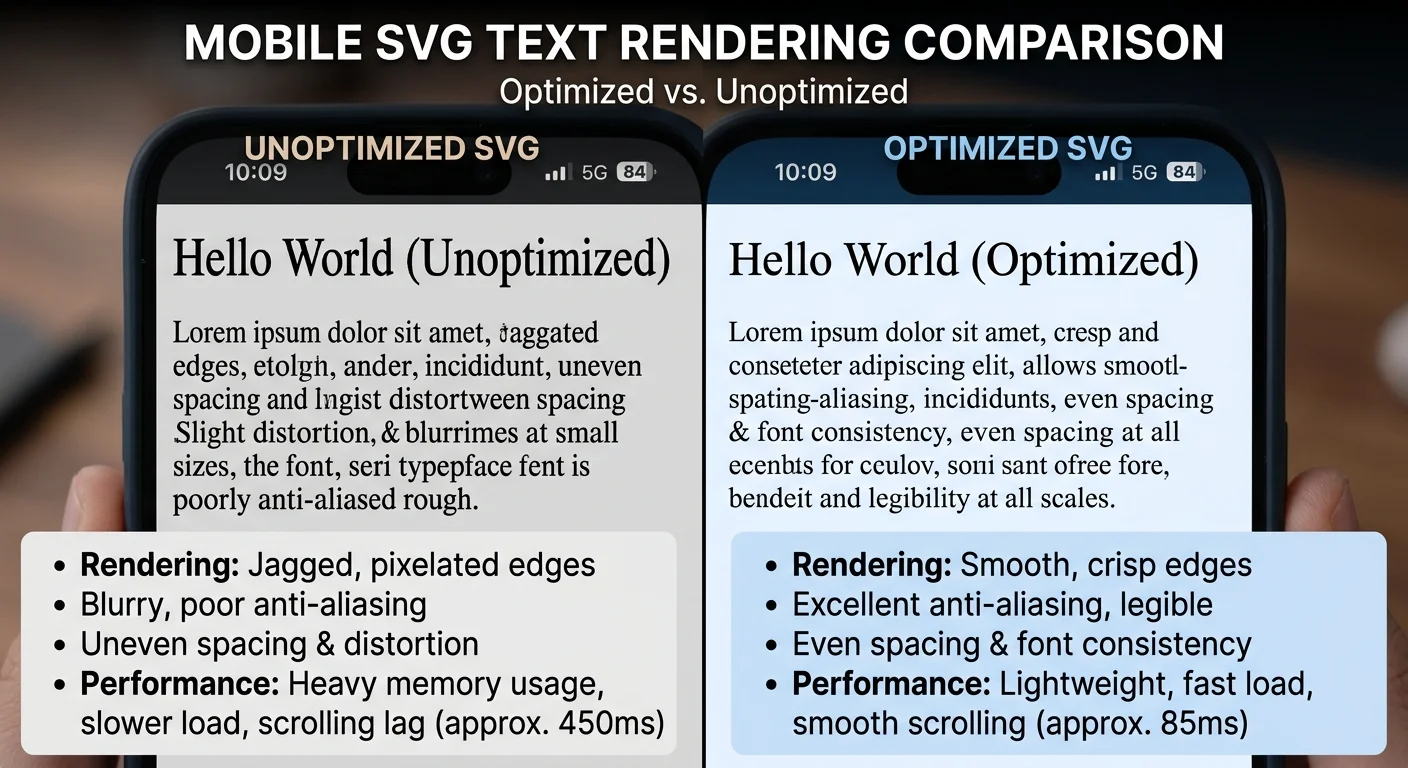
Finally, monitor your SVG rendering across devices by testing on actual mobile hardware, not just browser emulators. Scalable vector graphics should look sharp everywhere, but complex path data in text conversions can occasionally cause rendering jitter on lower-powered mobile GPUs. Simplifying path points (which SVGO can do with its convertPathData plugin) usually resolves these edge cases without visible quality loss.
Frequently Asked Questions
?How do I check if a generated SVG is bloated?
?When should I use a CLI tool instead of a browser-based one?
?Do free text to SVG tools automatically add accessibility attributes?
?Does using path-based SVG output really affect Lighthouse scores?
Final Thoughts
Choosing among the available text to SVG tools comes down to matching your workflow requirements with each tool's strengths. CLI utilities win for batch processing and automation. Browser-based generators like TxtToSvg.dev win for quick, one-off generation with AI-powered flexibility.
Always post-process with SVGO, always add accessibility attributes, and always test across rendering contexts. The five minutes you spend evaluating output quality upfront will save hours of debugging downstream.
Disclaimer: Portions of this content may have been generated using AI tools to enhance clarity and brevity. While reviewed by a human, independent verification is encouraged.