Why scalable vector graphics beat raster images is a question every web designer and developer should be able to answer with confidence. The difference between these two image formats affects page load speed, visual quality across devices, accessibility, and long-term maintainability. If you've ever zoomed into a logo on a retina display and watched it dissolve into a blurry mess, you already know the pain of raster images.
Scalable vector graphics (SVG) solve that problem by describing shapes mathematically rather than storing pixel data. This guide walks you through the practical steps of understanding, adopting, and implementing SVGs in your workflow.
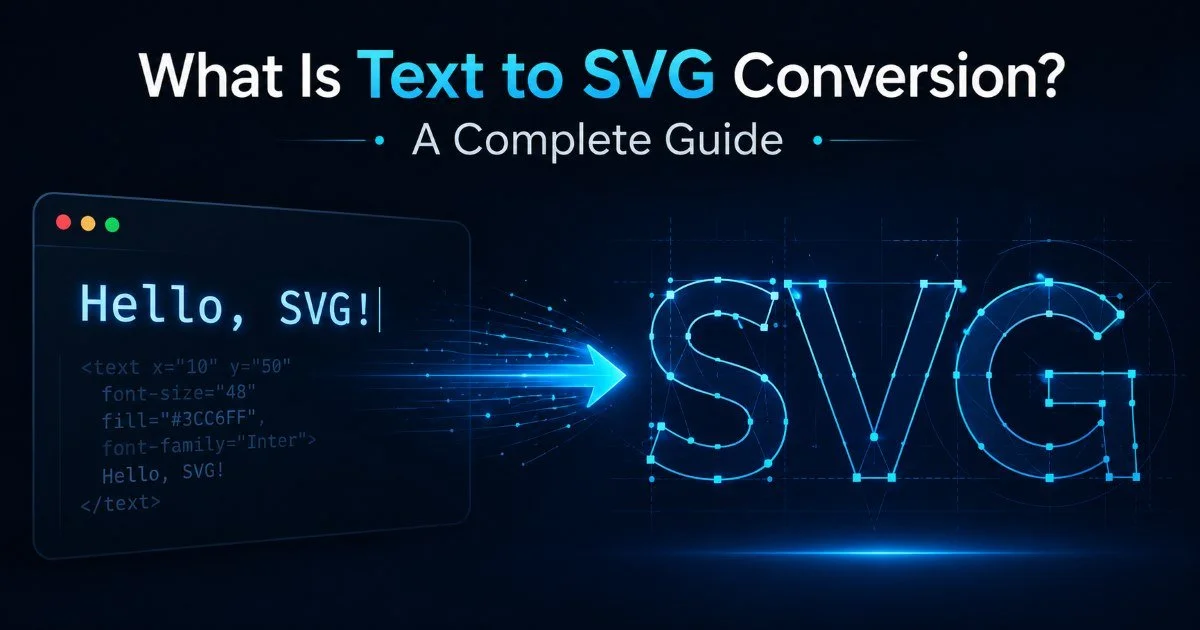
If you're new to the concept, our complete guide to text to SVG conversion covers the fundamentals in depth. By the end, you'll know exactly when and how to replace raster assets with vectors that perform better everywhere.
Key Takeaways
- SVGs scale infinitely without quality loss, making them ideal for responsive web design.
- Vector files are typically smaller than equivalent PNGs or JPEGs for simple graphics.
- SVG code is readable XML, which means it's searchable, editable, and accessible.
- Text to SVG conversion tools let you generate icons and labels without design software.
- Raster images still win for complex photographs, so choose format by content type.
Step 1: Understand Why Scalable Vector Graphics Beat Raster Images
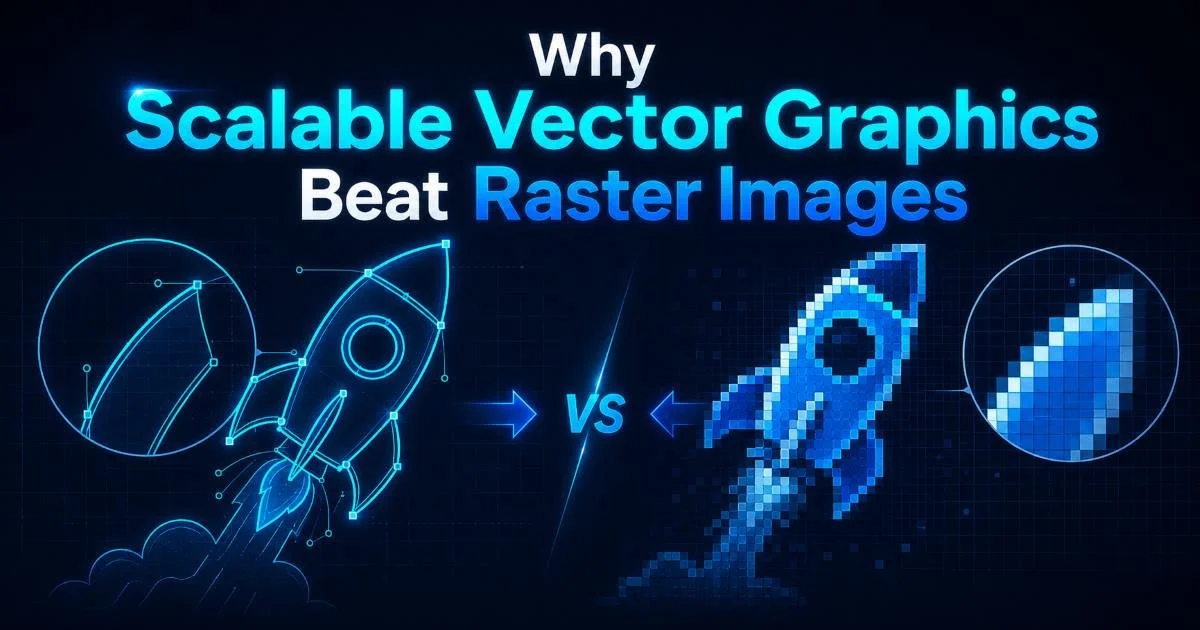
Raster images (JPEG, PNG, GIF, WebP) store visual data as a grid of colored pixels. When you scale them beyond their native resolution, the browser interpolates between those pixels, creating blurriness. A 200x200 pixel icon looks fine at that size but turns into a soft, jagged mess at 800x800. This is a fundamental limitation baked into the format itself, and no amount of sharpening can fix it.
SVG files, by contrast, describe shapes using mathematical coordinates, paths, and curves. A circle is defined by a center point and radius, not thousands of colored dots. This means the browser redraws the shape perfectly at any size, whether it's 16 pixels on a favicon or 4000 pixels on a billboard. The result is crisp rendering on every screen density, from a budget Android phone to a 6K Apple display.
How SVGs Work Under the Hood
An SVG file is plain XML. Open one in a text editor and you'll see tags like <path>, <rect>, <circle>, and <text>. Because it's text-based markup, search engines can read it, screen readers can interpret it, and developers can manipulate it with JavaScript or CSS. This is radically different from a PNG, which is a binary blob of pixel data the browser can only display, never inspect semantically.
Where Raster Still Fits
Photographs and highly complex textures with millions of color variations are still better served by JPEG or WebP. A photo of a sunset with continuous gradients and noise would produce an enormous SVG file because every color shift would require its own path definition. The rule of thumb is simple: if the image is a photograph, use raster; if it's a graphic, icon, logo, badge, diagram, or text label, vector graphics win every time. For photo generation tasks, tools like AI image generators produce raster output that's perfectly appropriate for photographic content.
Use SVGs for anything you'd create in a design tool (icons, logos, UI elements) and raster for camera-captured imagery.
Step 2: Audit Your Current Image Assets
Before converting anything, take stock of what you're actually serving. Open your browser's DevTools, navigate to the Network tab, and filter by images. Sort by file size. You'll likely find that logos, icons, and decorative badges are among the largest or most numerous requests. These are your primary targets for SVG conversion, and swapping them can produce immediate performance gains.
Pay attention to retina-ready assets. Many developers ship @2x and @3x versions of raster icons to support high-DPI screens. This means three files where one SVG would suffice. Calculate the combined weight of those multi-resolution assets. A set of 20 icons at three resolutions, averaging 8 KB each, totals 480 KB. The same 20 icons as optimized SVGs might total 40 KB. That's a 90% reduction with zero quality compromise.
Identify Conversion Candidates
Walk through your asset directory and categorize each image. Logos, social media icons, navigation icons, badges, and infographic elements are all strong candidates. Text-heavy images like banners with overlay copy are especially good fits because an SVG generator can reproduce them as real, selectable text inside vector containers. If you're working with creating SVG icons from text, you'll find this approach particularly efficient for badge and label production.
Document your findings in a spreadsheet. Record the filename, current format, file size, dimensions, and whether it appears above the fold. Prioritize above-the-fold assets because their load time directly impacts Largest Contentful Paint (LCP), a Core Web Vital that affects search rankings. Replacing a 90 KB PNG hero badge with a 3 KB inline SVG can shave hundreds of milliseconds off your LCP score.
Don't convert complex illustrations with embedded photographs or heavy gradients. These often produce SVGs larger than the original raster file.
Step 3: Convert and Generate SVGs for Your Projects
Using an SVG Generator
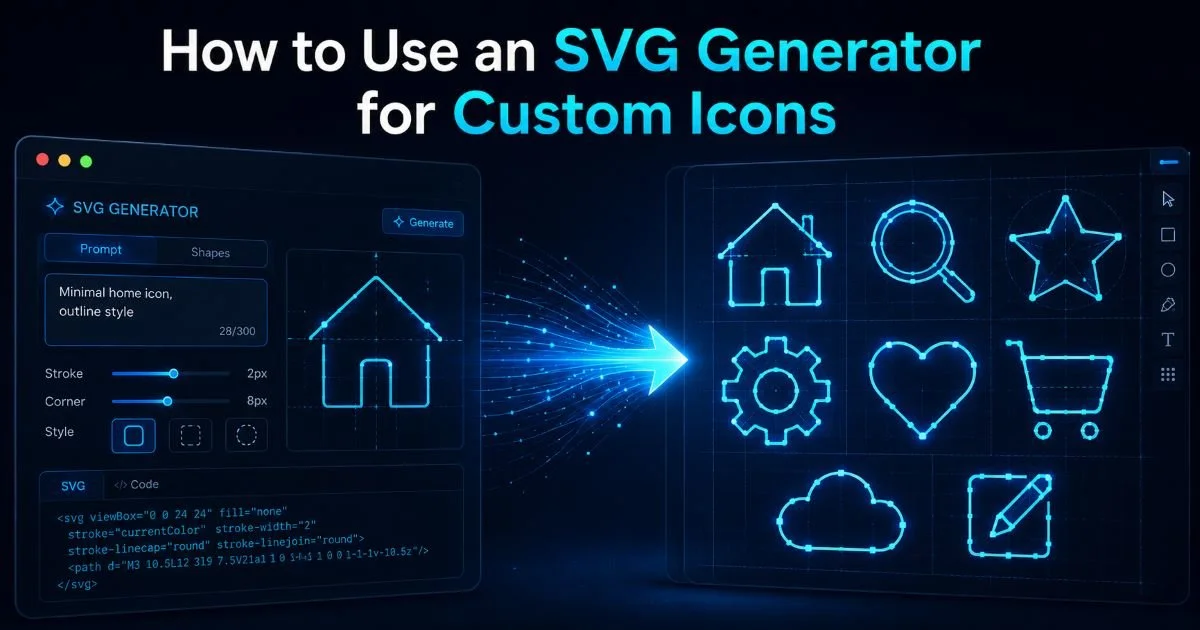
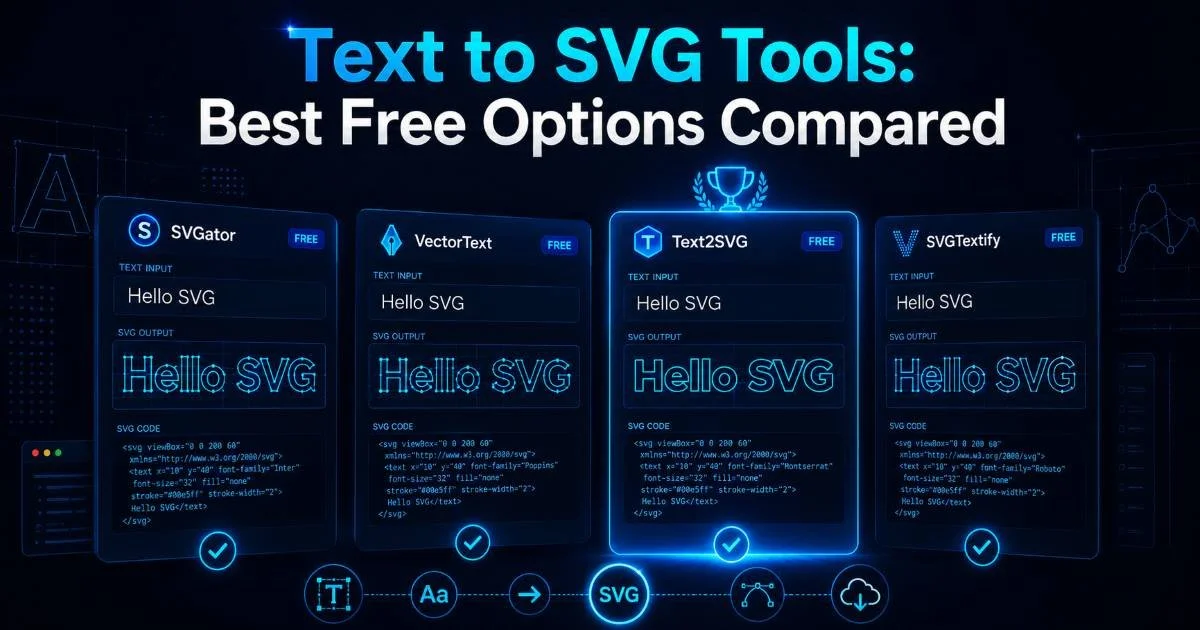
You have several paths to creating SVGs. Design tools like Figma, Illustrator, and Inkscape export vector artwork directly. But for text-based graphics (labels, badges, headings, buttons), a dedicated text to SVG conversion tool is faster. These tools accept plain text input and output clean SVG markup with proper viewBox attributes and accessible structure. Our guide on using an SVG generator for custom icons walks through the exact workflow.
When choosing a vector graphics tool, prioritize ones that output clean, minimal SVG code. Some design apps export bloated markup with unnecessary metadata, inline styles, and editor-specific attributes. Bloated SVG defeats the performance purpose. Look for export settings that strip comments, collapse groups, and use relative path commands. The cleaner the output, the smaller the file and the easier it is to manipulate in code.
Run every exported SVG through SVGO (SVG Optimizer) to strip metadata, remove empty groups, and shorten path data. Typical savings: 20-40%.
Optimizing SVG Output
After generation, inspect the SVG code manually. Remove any <title> or <desc> tags the tool may have auto-generated with placeholder text, then add your own meaningful descriptions. Verify that the viewBox attribute matches the actual artwork bounds. A mismatched viewBox causes clipping or unwanted whitespace, which leads to layout bugs that are frustrating to debug. For a broader look at working with these tools, the vector graphics tool guide for web developers covers optimization strategies in detail.
Consider whether you need the SVG as a standalone file or inline markup. Standalone files benefit from browser caching but require an HTTP request. Inline SVGs eliminate the network request and allow direct CSS/JS manipulation but add to your HTML document size. The right choice depends on how many times the graphic appears across your site and how much you need to style or animate it dynamically.
Step 4: Implement SVGs in Production Code
Inline vs. External SVG
Inline SVG means pasting the XML directly into your HTML. This approach gives you full control: you can target individual paths with CSS, bind event listeners to shapes, and animate strokes or fills without any external library. It's the preferred method for interactive UI elements, icon systems that change color on hover, and small graphics used once per page. The tradeoff is that inline SVGs aren't cached separately by the browser.
External SVGs referenced via <img> tags or CSS background-image behave like any other image file. The browser caches them, and they don't bloat your HTML. However, you lose the ability to style internal elements with CSS. A hybrid approach uses SVG sprite sheets: one external file containing multiple symbols, referenced via <use> elements. This combines caching benefits with some styling flexibility, and it's a pattern widely adopted in production icon systems.
"The best image format is the one that delivers the highest quality at the lowest cost to your users."
Accessibility and SEO
One of the underappreciated reasons why scalable vector graphics beat raster images is accessibility. Inline SVGs support role="img", aria-label, and embedded <title> and <desc> elements that screen readers can announce. A raster <img> tag only has the alt attribute. SVGs give you richer semantic options for complex graphics like charts or diagrams where a simple alt string isn't sufficient. For guidance on writing effective descriptions, this resource on how to write effective alt text for every image is worth reading.
Search engines can also parse SVG content. Text rendered inside an SVG <text> element is indexable, unlike text burned into a raster image. This matters for logos, infographics, and diagrams that contain keywords relevant to your content. An SVG-based chart with labeled axes gives search engines more context than a screenshot of the same chart. It's one more reason why scalable vector graphics beat raster images for anything that isn't a photograph.
Never use SVG for user-uploaded content without sanitization. SVGs can contain embedded JavaScript, which creates cross-site scripting (XSS) vulnerabilities.
Test your SVGs across browsers before shipping. While modern browser support for SVG is excellent (above 97% globally), edge cases exist with filters, masks, and certain animation properties. Safari handles some SVG features differently than Chrome, particularly around foreignObject and complex clip paths. Run your icons through BrowserStack or a similar tool, and keep a raster fallback for email templates where SVG support remains inconsistent.
Frequently Asked Questions
?How do I convert an existing PNG logo to SVG for my site?
?Should I use inline SVG or external SVG files in production?
?Will switching icons from PNG to SVG noticeably speed up my page load?
?Is it a mistake to convert a photograph to SVG format?
Final Thoughts
Why scalable vector graphics beat raster images comes down to math versus pixels. Vectors are lighter, sharper, more accessible, and more maintainable for the vast majority of web graphics. The practical steps are straightforward: understand the format differences, audit your existing assets, convert candidates using a reliable SVG generator, and implement them with the right embedding strategy.
Your pages will load faster, look sharper on every device, and give screen readers more to work with. Start with your most visible, most repeated graphics and expand from there.
Disclaimer: Portions of this content may have been generated using AI tools to enhance clarity and brevity. While reviewed by a human, independent verification is encouraged.